Usage
Opening Files
Managlyph loads scene data from ABO containers. Files can be opened in several ways:
Select File → Open and choose a
.abofile from the file system.Select File → Open from Library to browse the built-in library. The library is organized into categories and provides a search function for quickly locating example datasets.
Drag and drop a
.abofile directly into the anaglyph rendering widget.
Once loaded, the scene is rendered immediately.
3D Rendering
Managlyph supports stereographic output for 3D visualization. The projection mode can be selected via View → Projection.
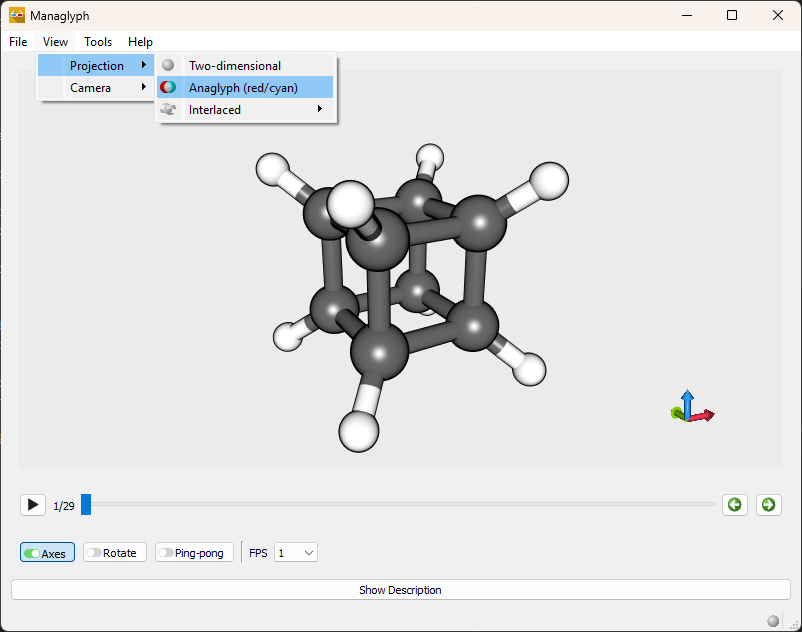
File menu showing the available rendering options.
Available modes include:
Anaglyph (red/cyan) for use with red/cyan 3D glasses.
Interlaced for compatible 3D displays and televisions.
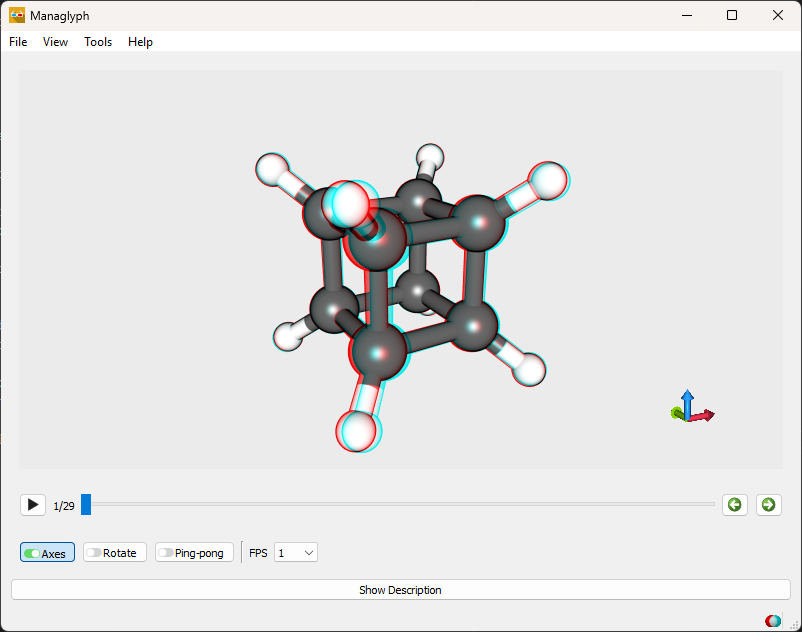
Example of red/cyan anaglyph rendering. When viewed with red/cyan glasses, the scene appears in stereoscopic 3D.
When using interlaced output, additional layout options are available:
line interlaced
column interlaced
checkerboard pattern
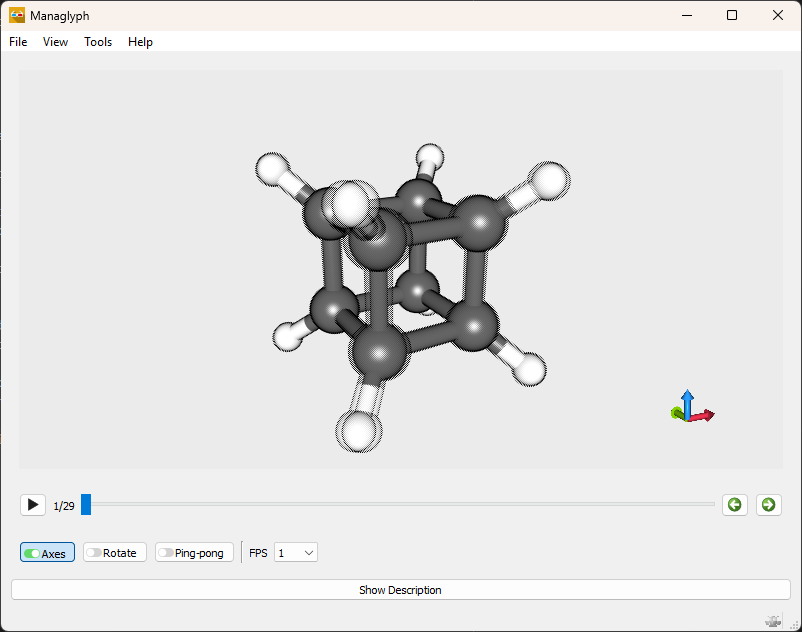
Checkerboard interlaced rendering. The image may appear visually unusual because adjacent pixels are alternately assigned to the left and right eye. When viewed on a compatible display, the image resolves into a stereoscopic 3D scene.
The display order of the stereo pair can also be configured by selecting which eye is rendered first.
Changes to projection settings are applied immediately.
Interface Controls
The main toolbar provides quick access to visualization and playback controls.
- Axes
Toggles the display of the 3D coordinate axes. When enabled, the axes provide spatial orientation within the scene.
- Rotate
Enables continuous rotation of the scene about the z-axis. This can help reveal three-dimensional structure and depth.
- Ping-pong
Controls playback behavior when multiple frames are present. When enabled, playback reverses direction at the final frame, producing a back-and-forth motion. When disabled, playback restarts from the first frame after reaching the end.
- FPS
Sets the playback speed in frames per second. Higher values increase motion smoothness, while lower values slow the animation for closer inspection.
Atomic Orbitals
Managlyph can visualize atomic orbitals using the built-in orbital generator.
To construct an orbital, open Tools → Orbital. The menu lists available orbitals from 1s through 4f. Selecting the “+” button next to an orbital generates its surface representation and displays it in the scene.
Multiple orbitals may be added to the same frame for comparison or visualization purposes.
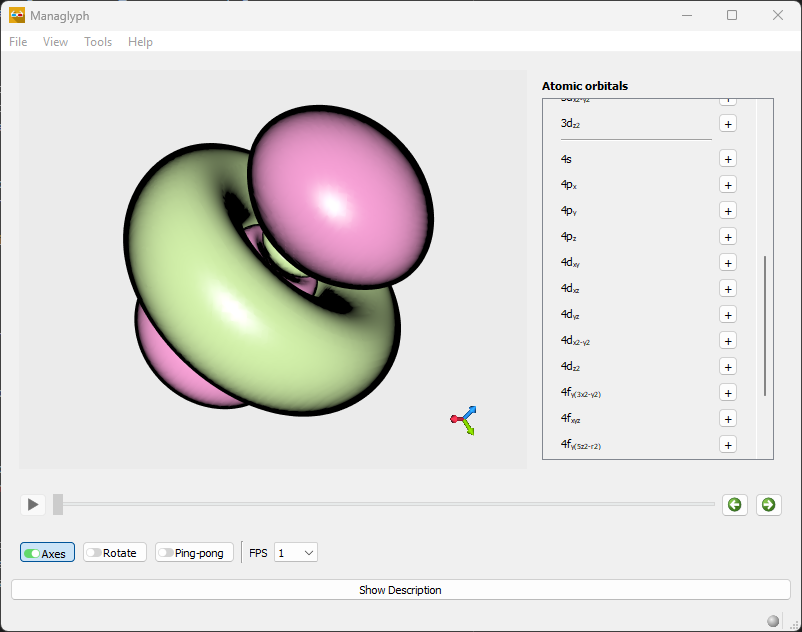
Visualization of the 4dz² atomic orbital. The orbital surface represents regions of equal probability density for the electron.
Visualization Settings
Visualization settings control lighting, shading, and rendering quality. These settings can be accessed via Tools → Visualisation settings.
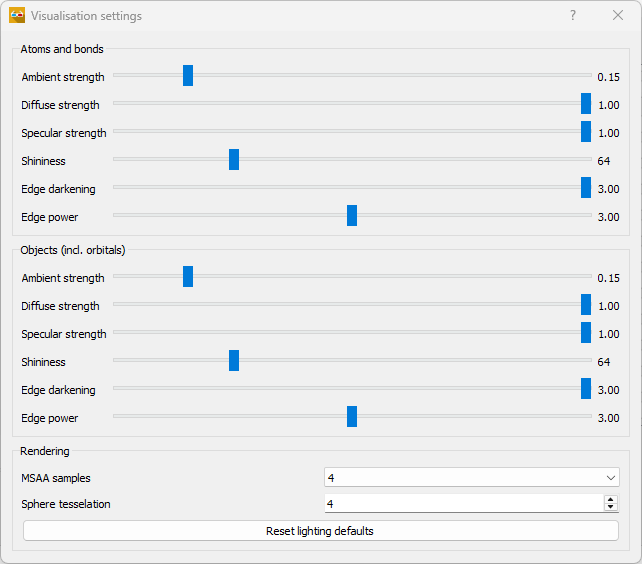
Visualisation settings panel.
Lighting Parameters
Lighting controls are provided separately for Atoms and bonds and Objects (including orbitals). This allows independent tuning of molecular structures and surface models.
- Ambient strength
Controls the baseline illumination applied uniformly to the object. Higher values brighten shadowed regions.
- Diffuse strength
Controls how strongly surfaces respond to directional light. Increasing this value enhances shape perception.
- Specular strength
Controls the intensity of reflective highlights. Higher values produce stronger glossy reflections.
- Shininess
Controls the size and sharpness of specular highlights. Higher values produce smaller, sharper highlights.
- Edge darkening
Darkens object edges to enhance depth perception and separation between overlapping surfaces.
- Edge power
Controls the strength and falloff of the edge-darkening effect.
Rendering
- MSAA samples
Sets the number of multisample anti-aliasing samples used to smooth jagged edges. Higher values improve visual quality at increased GPU cost.
- Sphere tessellation
Controls the geometric detail used when rendering atoms as spheres. Higher values produce smoother spheres but require more processing.
- Reset lighting defaults
Restarts all lighting parameters to their default values.